
Product update october 2025

This Product Update highlights what's new in Aqqo. The updated Products Page combines products, day programs and discounts in one clear screen for fewer clicks and more control. Read more below or start using it in Aqqo today.
New: One Central Products Page
Aqqo introduces a redesigned Products Page within a booking, allowing you to manage products, day programs, and discounts from one clear, central screen.
This means: fewer clicks, better overview, and faster workflows.
- Products (New: Add manual products)
- Day Programs
- Discounts (New)
Open any non-invoiced booking and click on Products to access the new page.
New: Add Manual Products
In addition to catalog products, you can now easily add custom items or temporary offers. Everything is displayed correctly on quotes and invoices, including VAT handling. No more need for ‘dummy products’.
How it works:
- Click Add Product → Manual Product
- Fill in the fields → Save
Link Products to Program Items
Within day programs, you can now link products directly to a specific program line, such as a lunch, workshop or session.
This makes it easy to see which product belongs to which part of the event, providing more structure and clarity in complex bookings.
New: Apply Discounts Without Workarounds
Discounts no longer need to be added using ‘dummy products’.
Now you can apply discounts directly within the booking:
- On the total amount or per product
- As a fixed amount or percentage
- Automatically recalculated when changes are made
Faster, more accurate and instantly reflected on quotes and invoices.
Contact us
Do you have any questions about this feature or Aqqo in general? Feel free to contact us through our Contact form.
Manage multiple contacts per organisation
Aqqo is introducing an important product update in customer management (CRM): Contacts.
Do you work with multiple people within one organisation? Or do different people make bookings? Then you know this can sometimes lead to confusion, duplicate data, or communication errors.
With the introduction of Contacts in Aqqo, we solve this.
What’s new?
With Contacts, it’s now possible to create multiple contact persons within a single customer account.
- Multiple contacts per customer
Each person gets their own account with permissions, bookings, and contact details. - Login per contact person
Contacts now form the foundation for logging into the Booking Engine, with the correct permissions for each person. - One person, multiple organisations
Someone who makes bookings for multiple organisations can easily switch between environments without logging in again. - Merge duplicate profiles
Duplicate contact persons can easily be merged into one correct profile without losing booking history.
Good to know
Billing remains linked to the customer’s central invoice address.

How it works in practice
- A sports club with multiple trainers
Each trainer is added as a contact person with their own permissions in Aqqo. The administrator maintains full control and determines who can view or edit information. This creates a clear division of responsibilities and reduces management errors. - A sports teacher booking for multiple schools
The sports teacher is linked as a contact person to multiple customers (schools). Once logged into the Booking Engine, they can choose which school they want to make a booking for. One account, multiple organisations - without the hassle of separate logins. - A shared email address used to make bookings for multiple organisations
The email address is linked as a contact person to multiple customers. Within the Booking Engine, users can choose which organisation they want to create a booking for. This keeps the process flexible without requiring complicated account management.
What does this improve?
- Always know who is responsible for a booking
- Faster communication with the right person during changes or incidents
- Fewer errors caused by duplicate contact details
- Better collaboration within and between organisations
Merging contact persons
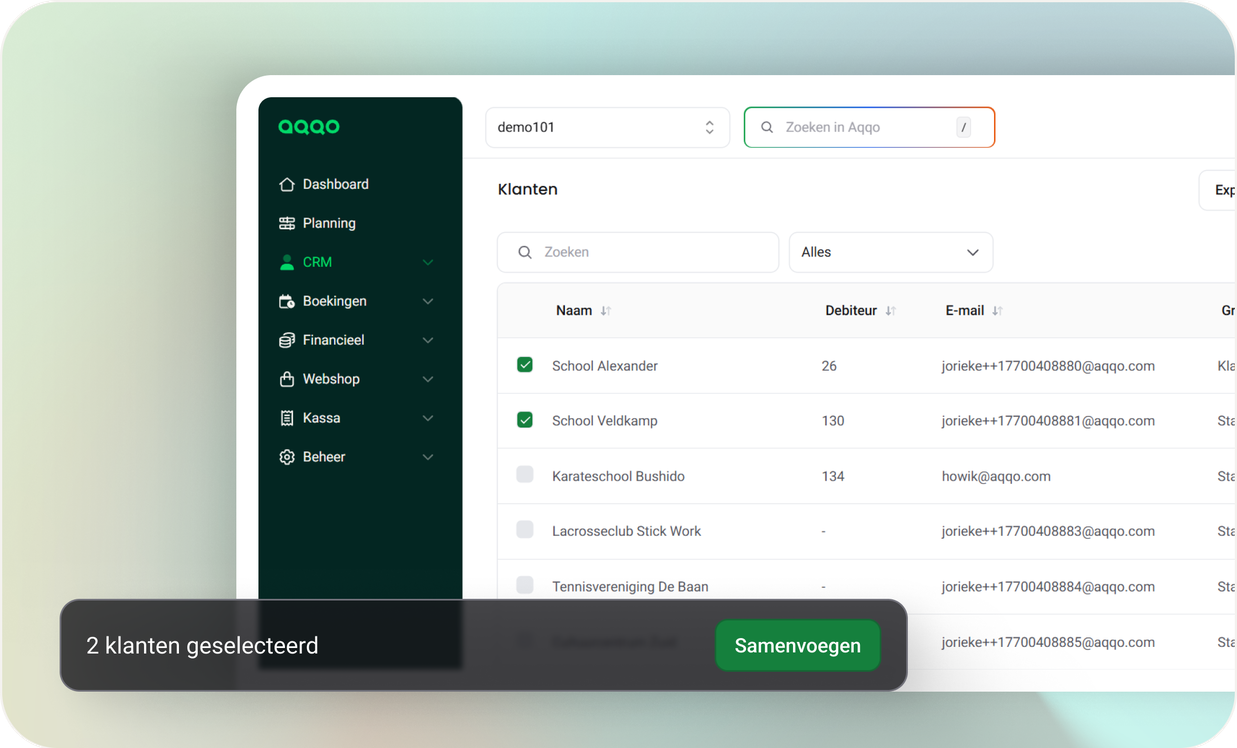
Existing contact persons can easily be merged. Duplicate profiles - for example based on the same email address - are combined into one complete and correct contact profile while preserving all linked bookings and history.
This helps clean up duplicate companies and contact persons, creates one central source of truth per organisation, and makes communication much more efficient.
Go to CRM → Customers. Select a maximum of 2 customers. Click the Merge button. In the merge screen, choose which customer the data should be merged into. Carefully review and adjust the information in this screen, as the merge cannot be undone. Click Confirm merge.
What you can do now as an administrator
Go to a customer in the back office, open the new Contacts tab, and start managing contact persons directly in Aqqo.
You can:
- Create contact persons and assign permissions
- Link contacts to bookings
- Allow users to log in to the Booking Engine
- Let users switch between multiple organisations
- Merge duplicate contact profiles
Customers can find more information and step-by-step instructions in the Aqqo Knowledge Base.
Contact us
Do you have any questions about this feature or Aqqo in general? Feel free to contact us through our Contact form.
More clarity and control in your back office: new updates in Aqqo
This January, we’re introducing two improvements that make working in Aqqo even clearer and more reliable. With the new Task Management, you gain better control over actions and follow-ups within your team. At the same time, automatic document storage for bookings ensures full transparency around sent quotations and booking confirmations.
Together, these updates support one key goal: more peace of mind, clarity, and control in your back office.
.webp)
New: Task Management in Aqqo
With the new Task Management feature, you can easily structure all actions related to customers and bookings. Tasks help you distribute work, safeguard follow-up, and ensure nothing is overlooked — even during busy periods.
What can you do with Task Management?
- Create tasks for yourself or another back-office user
- Link tasks to a customer or booking
- Clearly view open and completed tasks
- Edit, complete, or delete tasks
- Always see who needs to do what — and by when
Completed tasks are automatically archived, so your focus stays on what still needs attention.
Where can you find Tasks?
Tasks are available in three places:
1. Task overview
Via the bell icon in the top right corner, go to ‘Tasks’. Here you can see all open and completed tasks at a glance — for yourself and for others.
2. At customer level
On a customer’s page, you can immediately see which tasks are open or completed. From here, you can easily add a new task for that customer.
3. At booking level
Tasks are also visible at booking level, giving you direct insight into what still needs to be done for a specific reservation.
Quickly add a task
Using ‘Add new task’, you can create a task in just a few seconds, including a clear deadline. This keeps follow-up concrete and manageable.

New: automatic storage of quotations and booking confirmations
Since 25 November 2025, Aqqo automatically saves a copy of every sent quotation and booking confirmation. These documents can be found directly in the Documents tab of the relevant booking.
This gives you complete insight into what has been sent — including order, versions, and exact content.
Where can you find the documents?
- Open the booking
- Go to the Documents tab
- Here you’ll find all sent quotations and confirmations, sorted by date and time (most recent at the top)
Good to know
- Automatic storage applies from 25 November 2025 onwards
- Documents sent before this date are not stored retroactively
Do you send quotations manually?
If you download a quotation and send it outside of Aqqo, mark it via:
Send → Mark quotation as manually sent
Aqqo will then automatically ensure:
- correct send logging in the History tab
- storage of the quotation PDF in the Documents tab
Key benefits at a glance
- Complete history
- You can see exactly which quotations and confirmations were sent — including all versions and changes.
- Better control when changes are made
- All versions remain available, with no risk of documents being overwritten.
- Reliable proof
- Useful in case of questions or discussions afterwards: all sent versions are demonstrably available within the booking.
More overview, less noise
With Task Management and automatic document storage, we’re taking another step toward a back office that supports your work instead of distracting from it. Fewer loose to-do lists, less searching, and more control — for you and your team.
Contact us
Do you have any questions about this feature or Aqqo in general? Feel free to contact us through our Contact form.